> ## Documentation Index
> Fetch the complete documentation index at: https://comfydeploy.mintlify.site/llms.txt
> Use this file to discover all available pages before exploring further.
# Workflows
> Workflows how do they work?
# Workflows and their related concepts
Workflows in Comfy Deploy represent your **ComfyUI** workflows that you've uploaded and want to use in your own applications.
## Workflow Verisons
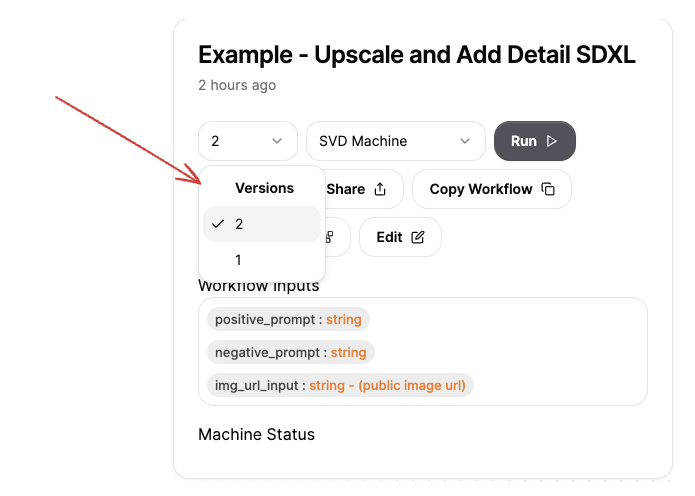
Workflows have **versions**. Versions let you iterate on your workflows
without losing track of previous work.
 ## Machines
{" "}
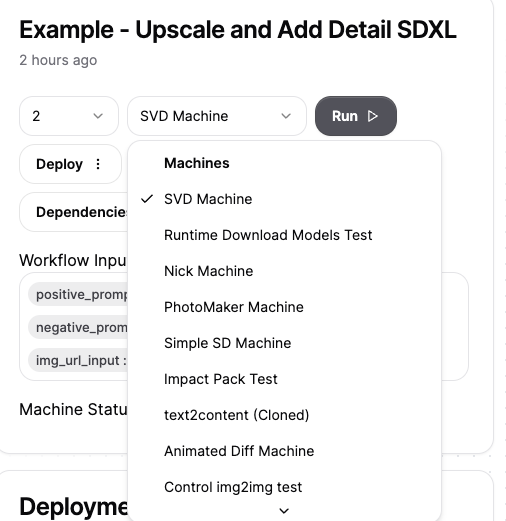
Your workflows run on a machine [learn more here](machine)
The custom nodes your workflow depends on should be installed into your machine.
## Machines
{" "}
Your workflows run on a machine [learn more here](machine)
The custom nodes your workflow depends on should be installed into your machine.
 ## Deployments and APIs
{" "}
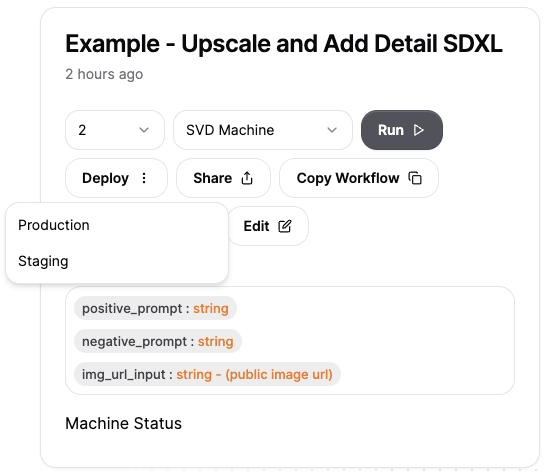
Deployments are how you can expose your workflows as APIs! Select your
**version** and **machine**. Then select either "production" or "staging" for
your deployment
## Deployments and APIs
{" "}
Deployments are how you can expose your workflows as APIs! Select your
**version** and **machine**. Then select either "production" or "staging" for
your deployment
{" "}
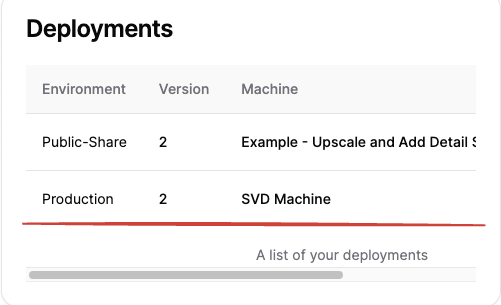
You should see a deployment popup shortly in the bottom left, this means your
deployment is live!
 ## Integrating your Workflow API
When you click this you'll find code snippets to integrate your Comfy
workflows with your applications with a simple API call.{" "}
* [Example of calling on the frontend.](https://github.com/BennyKok/comfyui-deploy-next-example/blob/97369e82cd43e910bf5f81a33eb2d0ebe320a318/src/app/page.tsx#L78-L89)
* [JS SDK Usage](https://github.com/BennyKok/comfyui-deploy-next-example/blob/97369e82cd43e910bf5f81a33eb2d0ebe320a318/src/server/generate.tsx#L10-L17)
* [Polling mechanism to update the frontend](https://github.com/BennyKok/comfyui-deploy-next-example/blob/97369e82cd43e910bf5f81a33eb2d0ebe320a318/src/app/page.tsx#L235-L265)
If you're using `js/ts` you can install our SDk
```bash npm theme={null}
npm i comfydeploy
```
```bash bun theme={null}
bun i comfydeploy
```
```bash pnpm theme={null}
pnpm i comfydeploy
```
```bash yarn theme={null}
yarn add comfydeploy
```
Then you can intilize your client and create a run
```javascript theme={null}
// Initialize your client
const client = new ComfyDeployClient({
apiToken: process.env.COMFY_DEPLOY_API_KEY!,
});
// Create a run via deployment id
const { run_id } = await client.run({
deployment_id: "",
// these inputs will change based on your situatoin
inputs: {
"positive_prompt": "",
"negative_prompt": ""
}
});
// Check the status of the run, and retrieve the outputs
const run = await client.getRun(run_id);
```
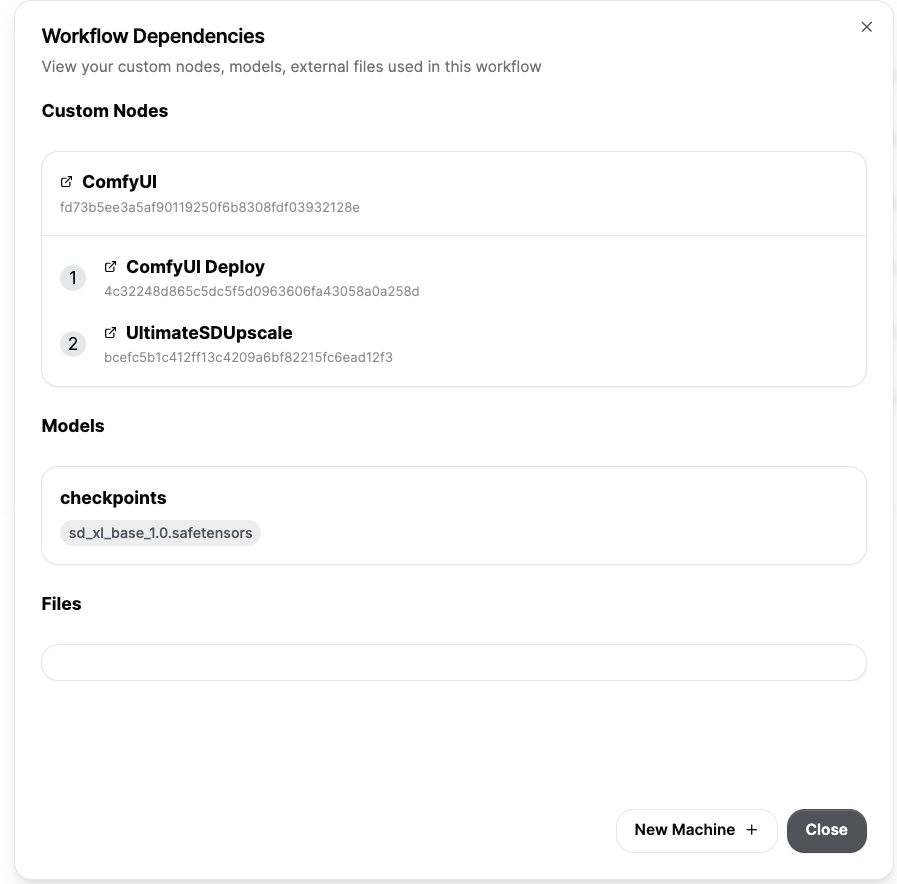
## Dependencies
Dependencies are the **models**, **static assets** and **custom nodes** that
you need to run your workflows. We figure this out based on your local
environment and collect them so that you can get up and running quickly.
Currently we don't get all the dependencies but we do get a lot of the obvious
ones out of the way.
## Integrating your Workflow API
When you click this you'll find code snippets to integrate your Comfy
workflows with your applications with a simple API call.{" "}
* [Example of calling on the frontend.](https://github.com/BennyKok/comfyui-deploy-next-example/blob/97369e82cd43e910bf5f81a33eb2d0ebe320a318/src/app/page.tsx#L78-L89)
* [JS SDK Usage](https://github.com/BennyKok/comfyui-deploy-next-example/blob/97369e82cd43e910bf5f81a33eb2d0ebe320a318/src/server/generate.tsx#L10-L17)
* [Polling mechanism to update the frontend](https://github.com/BennyKok/comfyui-deploy-next-example/blob/97369e82cd43e910bf5f81a33eb2d0ebe320a318/src/app/page.tsx#L235-L265)
If you're using `js/ts` you can install our SDk
```bash npm theme={null}
npm i comfydeploy
```
```bash bun theme={null}
bun i comfydeploy
```
```bash pnpm theme={null}
pnpm i comfydeploy
```
```bash yarn theme={null}
yarn add comfydeploy
```
Then you can intilize your client and create a run
```javascript theme={null}
// Initialize your client
const client = new ComfyDeployClient({
apiToken: process.env.COMFY_DEPLOY_API_KEY!,
});
// Create a run via deployment id
const { run_id } = await client.run({
deployment_id: "",
// these inputs will change based on your situatoin
inputs: {
"positive_prompt": "",
"negative_prompt": ""
}
});
// Check the status of the run, and retrieve the outputs
const run = await client.getRun(run_id);
```
## Dependencies
Dependencies are the **models**, **static assets** and **custom nodes** that
you need to run your workflows. We figure this out based on your local
environment and collect them so that you can get up and running quickly.
Currently we don't get all the dependencies but we do get a lot of the obvious
ones out of the way.
 ## Public Share
{" "}
Public share is a way that you can quickly share your workflows with your
teammates or prospective clients.
## Public Share
{" "}
Public share is a way that you can quickly share your workflows with your
teammates or prospective clients.
Selecting "public", it will show up in your "deployments" section.
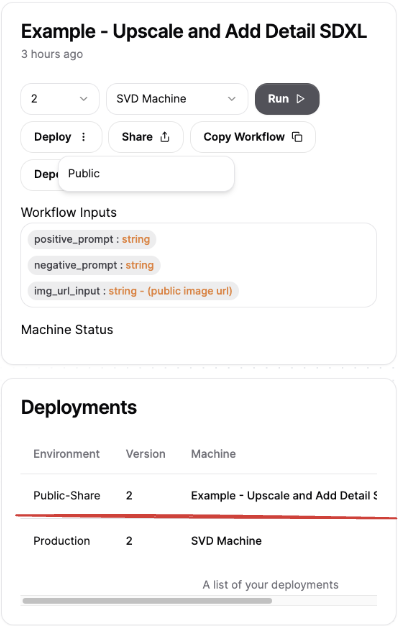 {" "}
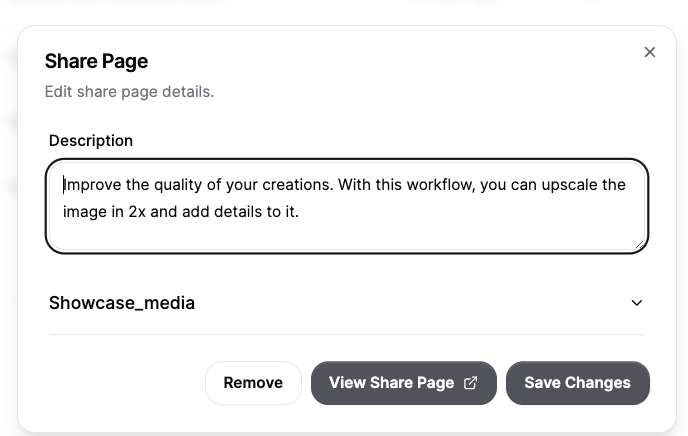
When you click the public share tab in the deployment section, a popup with
fields to customize your Share page will show up. You'll be able to add a -
description of your workflow, - a "cover photo" to showcase. - The title of
the page will be the name of the workflow. - Users will be able to test out
the workflow, with the inputs you defined
{" "}
When you click the public share tab in the deployment section, a popup with
fields to customize your Share page will show up. You'll be able to add a -
description of your workflow, - a "cover photo" to showcase. - The title of
the page will be the name of the workflow. - Users will be able to test out
the workflow, with the inputs you defined
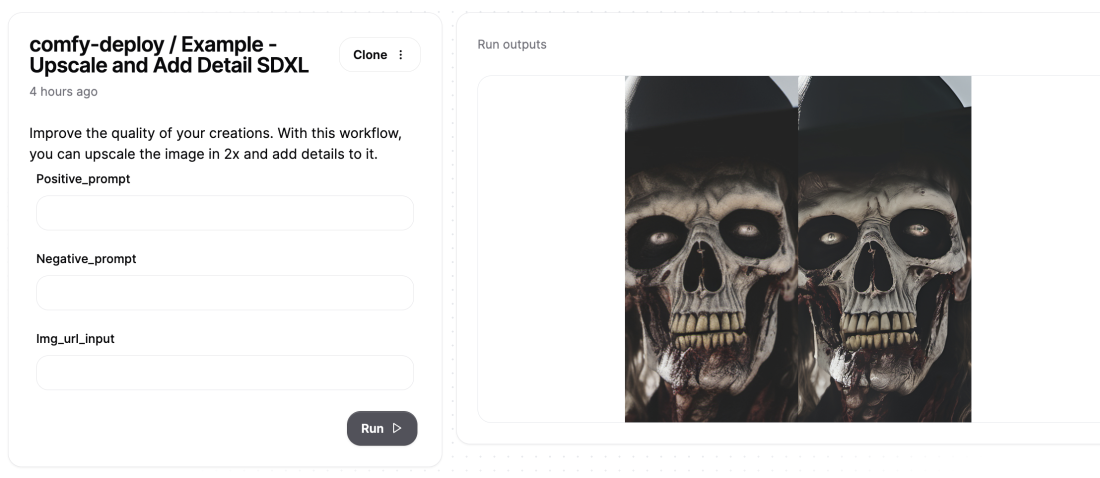
 {" "}
Your view share page will look something like{" "} [this](https://www.comfydeploy.com/share/comfy-deploy-example-txt2img-sdxl)
Check out this [examples page](https://comfydeploy.com/examples) for Comfy Deploy workflows! (They use sharepages!)
{" "}
Your view share page will look something like{" "} [this](https://www.comfydeploy.com/share/comfy-deploy-example-txt2img-sdxl)
Check out this [examples page](https://comfydeploy.com/examples) for Comfy Deploy workflows! (They use sharepages!)
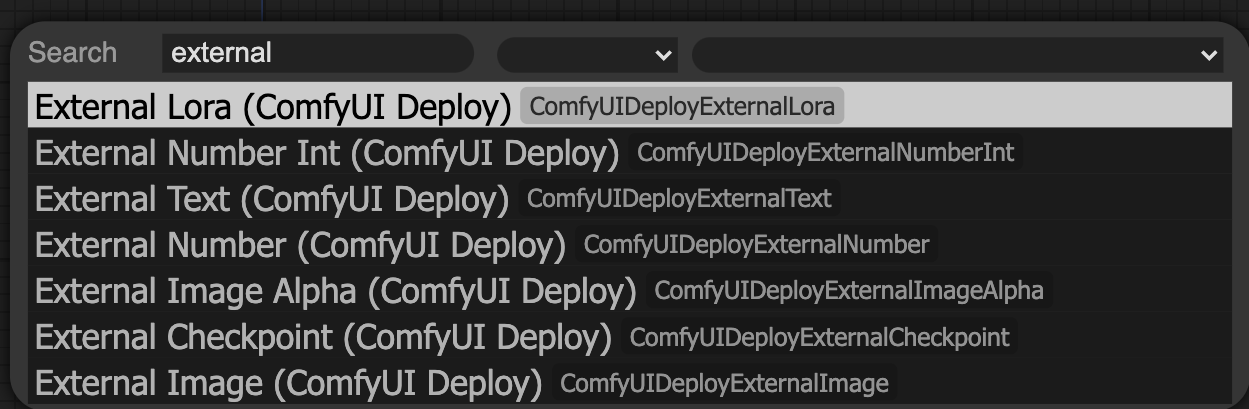
 ## External inputs
{" "}
External inputs are how you define the inputs of your deployed APIs! This is
done by connecting Comfy Deploy's "External nodes" to your existing workflows.
You can find them by searching "external" for in your ComfyUI
## External inputs
{" "}
External inputs are how you define the inputs of your deployed APIs! This is
done by connecting Comfy Deploy's "External nodes" to your existing workflows.
You can find them by searching "external" for in your ComfyUI
 ### Setting External Inputs
{" "}
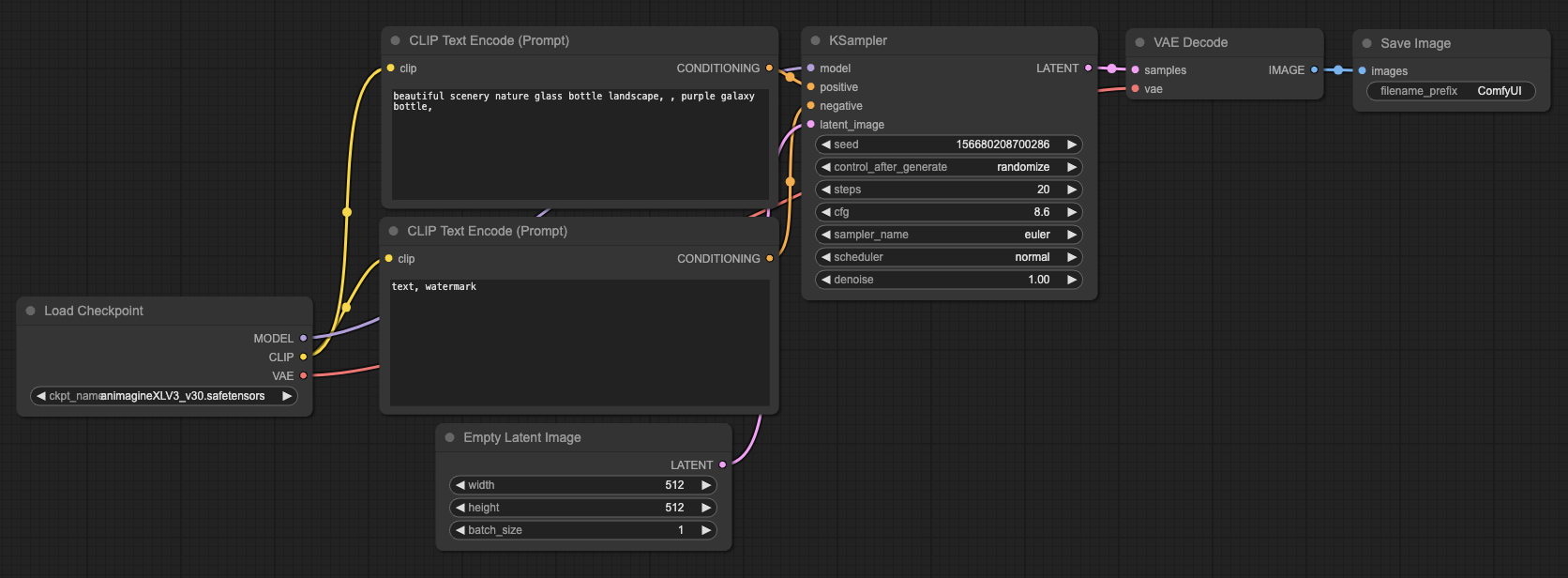
Let's say this is my workflow If I wanted to make it so that the positive
prompt was an **external input**.
### Setting External Inputs
{" "}
Let's say this is my workflow If I wanted to make it so that the positive
prompt was an **external input**.
 {" "}
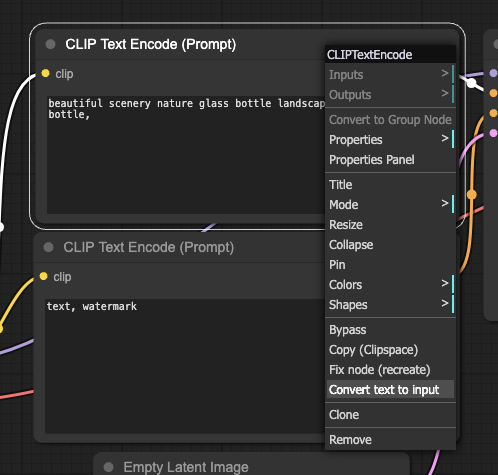
1. Right click and select "Convert text to input" (this option is availble to
all your input values).
{" "}
1. Right click and select "Convert text to input" (this option is availble to
all your input values).
 {" "}
2. Then you'll see that the value has turned into an input value
{" "}
2. Then you'll see that the value has turned into an input value
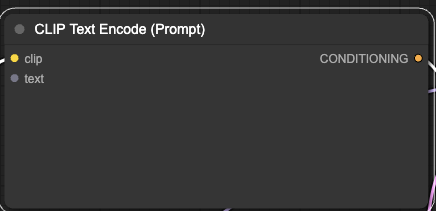
3. Connect the Comfy Deploy "External text" node to it. Optionally write a
default value
4. Then deploy!{" "}
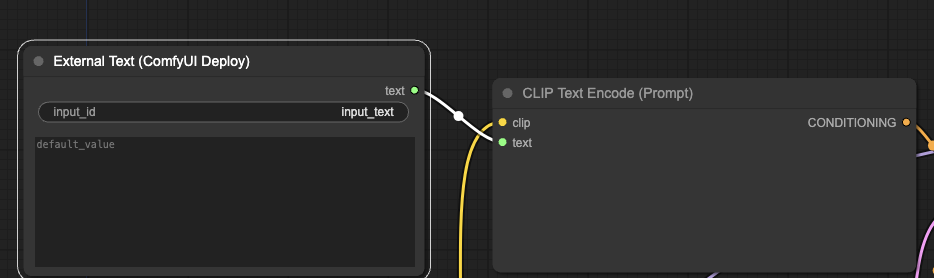
Now you understand where you can set workflow inputs!
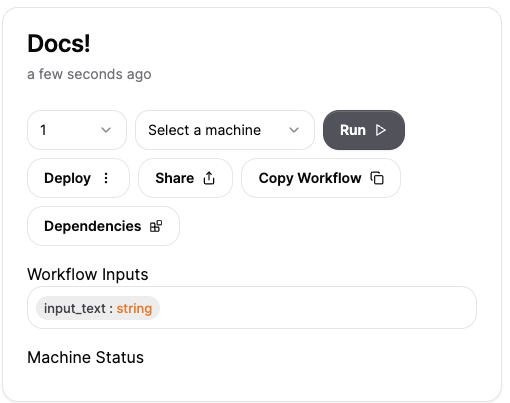 ## Outputs
Outputs are determined by "Save image" and "Preview img" we allow differnt types of outputs.
* `.png`
* `.jpg/jpeg`
* `.webp`
* `.octet-stream`
## Outputs
Outputs are determined by "Save image" and "Preview img" we allow differnt types of outputs.
* `.png`
* `.jpg/jpeg`
* `.webp`
* `.octet-stream`
 ## Observability
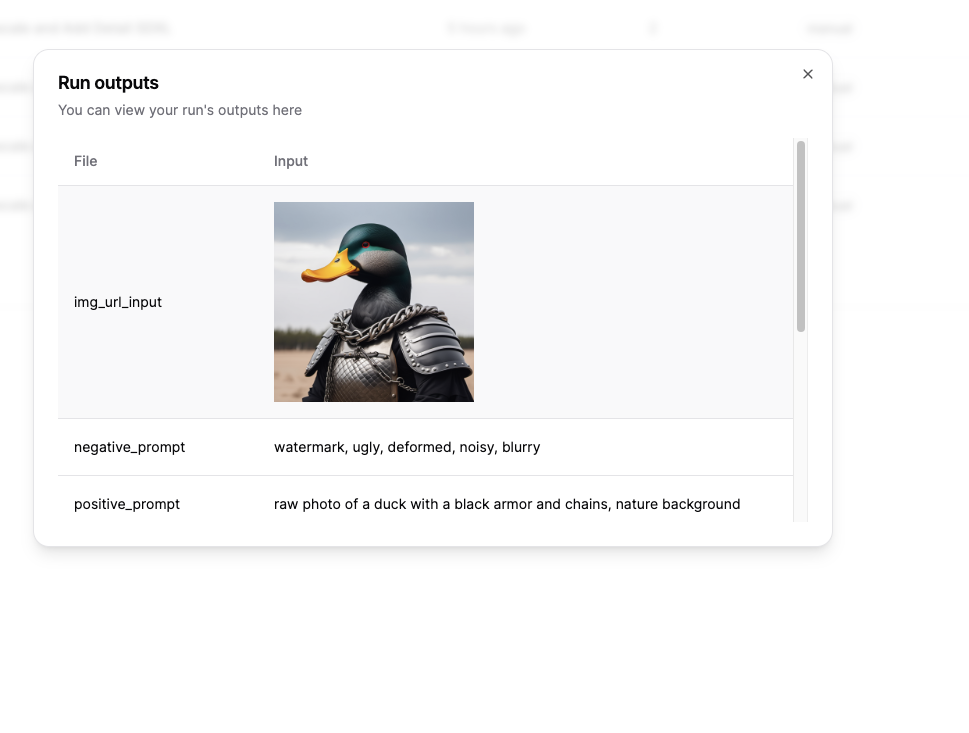
Workflow observability means being able to undersatnd what happens on your
runs. What you see here is the inputs given, a link to the logs as well as the
final output.
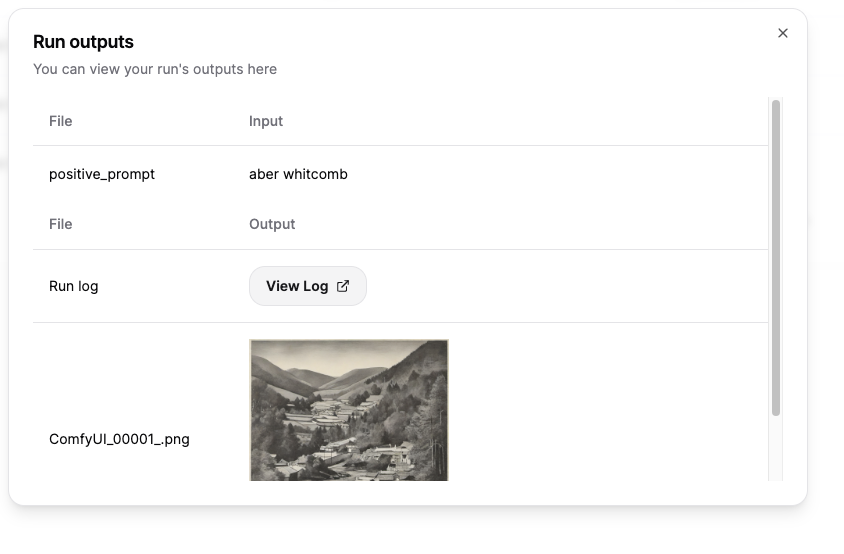
Also you are able to see the time spent in the different operations. As well
as the fine grained breakdown if you hover over the Duration.
 ## Models and Storage
The models your workflows depend on will be in storage [learn more here](/storage)
### Properties - workflow version
Unique identifier for the workflow.
Unique identifier for the workflow.
The ComfyUI workflow object.
The ComfyUI workflow API object.
The version number of the workflow.
The snapshot object from ComfyUI.
The dependencies object associated with the workflow.
Timestamp of when the workflow was created.
Timestamp of when the workflow was last updated.
## Models and Storage
The models your workflows depend on will be in storage [learn more here](/storage)
### Properties - workflow version
Unique identifier for the workflow.
Unique identifier for the workflow.
The ComfyUI workflow object.
The ComfyUI workflow API object.
The version number of the workflow.
The snapshot object from ComfyUI.
The dependencies object associated with the workflow.
Timestamp of when the workflow was created.
Timestamp of when the workflow was last updated.